SWS SecureDesk – User Guide
SWS SecureDesk is a Windows desktop app from ShoryNow Web Services (SWS). It brings secure SSH access, an encrypted key vault, port tunnels and Remote Desktop together in one place.
Version 100.42.0 · Windows 10 (1809+) / Windows 11, 64-bit · sws.shorynow.com
1. Highlights
| Feature | What you get |
|---|---|
| SSH key login | Connect with your private key (RSA, ECDSA, Ed25519) on any port. Optional passphrase. |
| Encrypted vault | Servers, keys and passwords are stored with AES-256-GCM, and the vault key is protected by Windows. You can delete the original key file after you save the server. |
| Many servers at once | Several servers can be connected side by side, each with its own terminal output and tunnels. |
| Tunnels | Open any server or Docker port on your PC (localhost), use a SOCKS5 proxy, or tunnel Remote Desktop. Tunnels listen on 127.0.0.1 only. |
| One-click Linux desktop | Installs XFCE and xrdp on Ubuntu/Debian and creates a desktop user for you. |
| Remote Desktop workspace | Save Windows and Linux desktops and connect directly, without SSH. |
| Built-in viewer + Windows RDP | Use the SecureDesk viewer (fit to window, quality modes, multiple sessions) or open the same connection in Windows Remote Desktop. |
| Encrypted backups | Move everything to another PC or share it with a teammate using one password-protected .scbackup file. |
| Dark and light themes | A clean, modern design in both themes. |
2. System requirements
- Windows 10 version 1809 or later, or Windows 11 (64-bit)
- About 200 MB of free disk space
- No .NET install needed, because the runtime is included
- For SSH: a Linux server with OpenSSH and your public key in
~/.ssh/authorized_keys - For Remote Desktop: a Windows PC/server with Remote Desktop enabled, or a Linux server with xrdp (SecureDesk can install it for you)
3. Installation
- Download
SWS-SecureDesk-Setup-100.42.0.exefrom sws.shorynow.com. - Double-click the file. If Windows SmartScreen shows "Windows protected your PC", click More info → Run anyway. (You will only see this until the installer is code-signed.)
- Choose Install for all users (needs administrator rights) or Install for me only.
- Read the License Agreement, select I accept the agreement, and click Next.
- Choose the options you want:
- Create a desktop shortcut
- Open .scbackup backup files with SWS SecureDesk
- Click Install, then Finish to start the app.
Where it is installed:
| Item | Location |
|---|---|
| Program (all users) | C:\Program Files\SWS SecureDesk\ |
| Program (just me) | %LocalAppData%\Programs\SWS SecureDesk\ |
| Your encrypted data | %AppData%\SWSSecureDesk\ |
| Start Menu | SWS SecureDesk |
Silent install (for IT teams):
SWS-SecureDesk-Setup-100.42.0.exe /VERYSILENT /SUPPRESSMSGBOXES /NORESTART
4. First start and Terms & Conditions
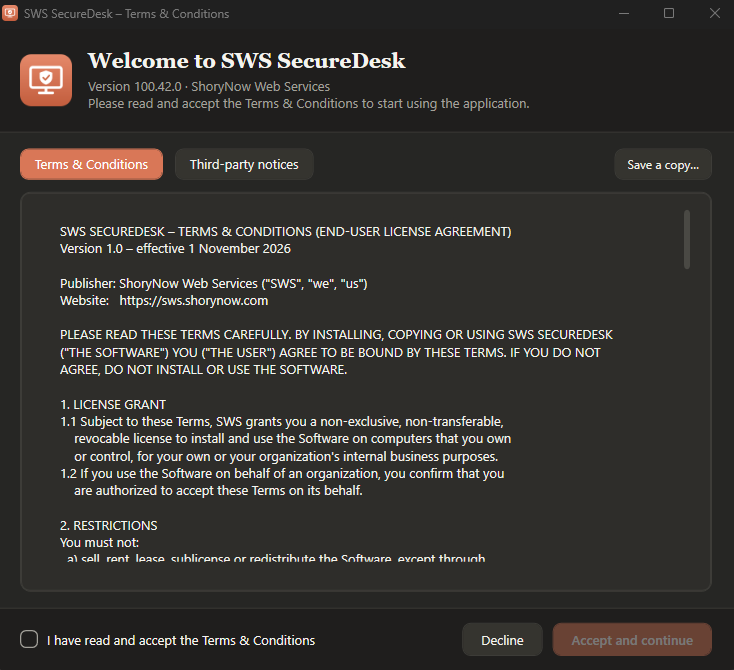
The first time you start SWS SecureDesk, the Welcome window shows the Terms & Conditions.
- Read the terms. The Third-party notices tab lists the open-source components used.
- Tick I have read and accept the Terms & Conditions.
- Click Accept and continue.
If you click Decline or close the window, the app exits and nothing is changed. You can read the terms again at any time under Help → Terms & Conditions, and you can save a copy with Save a copy….
If you used an earlier test build (called SecureConnect), your saved data is moved to the new SWS SecureDesk folder automatically the first time you start the app.
5. Tour of the window
| Area | Description |
|---|---|
| Navigation rail (left) | The SWS logo (opens About), SSH workspace, RDP workspace, Open data folder and the Dark/Light theme switch. |
| Sidebar | Your saved servers or desktops, with search, connection status dots, + New, Delete, Import… and Export…. |
| ⋯ menu | Every item has a ⋯ button (or right-click) with Connect, Edit, Duplicate, Copy address, Export and Delete. |
| Details card | A summary of the selected item. Click Edit to change it. |
| Menu bar | File (new, import/export, theme, data folder, exit) and Help (Terms, notices, website, logs, About). |
6. SSH servers
6.1 Add a server
- Open the SSH workspace and click + New server (Ctrl+N).
- Fill in:
- Name, for example Production web
- Host / IP, for example
187.126.2.29orserver.example.com - Port, for example
22or9899 - Username, for example
rootorubuntu
- Add your private key:
- Browse key file… and pick the private key (for example
id_ed25519, not the.pubfile), or - copy the key text and click Paste key. The clipboard is cleared afterwards.
- Browse key file… and pick the private key (for example
- If the key has a passphrase, type it. Tick Remember passphrase to store it encrypted.
- Click Save server (Ctrl+S).
After you save, the key is stored only in the encrypted vault, so you can move or delete the original key file.
6.2 Test and connect
- Test port checks that the host can be reached and that an SSH server answers. It shows the latency and the SSH banner.
- Connect logs in with your key. The first time, the server's host key fingerprint (SHA256) is saved. On later connections it is checked. If it ever changes, SecureDesk warns you before connecting (this can mean a server rebuild or a man-in-the-middle attack).
- Disconnect closes the session and all of its tunnels.
The sidebar shows ● connected · N tunnels for each active server. You can connect as many servers as you like at the same time.
6.3 Edit, duplicate and delete
Use Edit on the summary card, or the ⋯ menu → Edit / Duplicate / Delete. Duplicate copies a server with its key and tunnels, which is handy for similar machines.
7. Terminal and quick commands
The Terminal tab runs commands on the selected server.
- Type a command and press Enter, or click Run. Use ↑ / ↓ to go through your command history.
- ■ Stop cancels a running command. Commands time out after 60 seconds and never wait for keyboard input.
- Quick commands: System info, Disk, Memory, Top processes, Listening ports, Docker ps, Failed services.
- Copy copies the output and Clear clears it. Each connected server keeps its own output.
The terminal runs one command at a time (it is not an interactive shell). Full-screen programs such as
top -i,nanoorvimare not supported. Usetop -b -n 1instead.
8. Tunnels: port, SOCKS and RDP
Open the Tunnels & RDP tab of a connected server. Tunnels are saved with the server, and you can set them to start automatically (Auto) when you connect.
| Type | Use it for | Example |
|---|---|---|
| Port | Open one remote port on your PC | localhost:8080 → 127.0.0.1:80 on the server (web app), or 172.17.0.2:5432 (a Docker container) |
| SOCKS | One proxy that reaches every port and private IP the server can reach | Set your browser or DBeaver to SOCKS5 127.0.0.1:1080 |
| RDP | Remote Desktop through the encrypted SSH connection | localhost:13389 → 127.0.0.1:3389 |
Add a tunnel: choose the type, then enter a name, local port, remote host and remote port, and click + Add tunnel.
Each tunnel row has: Start/Stop, Open (browser or Remote Desktop), Windows RDP, Copy (address) and ✕ (delete). Use Start all / Stop all for every tunnel at once.
Discover server ports lists every listening service and Docker container port on the server. Click Forward to create a tunnel in one step.
Tunnels listen on 127.0.0.1 only, so other computers on your network cannot use them.
9. Remote Desktop for a Linux server (through SSH)
SecureDesk can turn an Ubuntu/Debian server into a graphical desktop that you reach through the SSH tunnel. Port 3389 does not need to be open on the internet for this.
- Connect to the server as root (or as a user with password-less sudo).
- In Tunnels & RDP, click Set up Remote Desktop…
- Enter a desktop username and password (this is a separate Linux user, not root).
- Keep Install XFCE desktop + xrdp if missing ticked. The first install takes about 5–15 minutes, and you can watch the progress.
- When it finishes, SecureDesk creates an RDP tunnel and offers to open it.
What the setup does on the server: it installs xfce4, xrdp and dbus-x11, creates the user, sets XFCE as the session, and applies settings for stable, fast sessions (24-bit color, no compositor). It also allows a new session even when the user is already logged in.
10. Remote Desktop workspace (direct RDP)
The RDP workspace stores Remote Desktop connections that do not need SSH: Windows PCs and servers, or Linux servers with xrdp open to the network.
10.1 Add a desktop
- Click RDP in the rail, then + New desktop (Ctrl+R).
- Enter a Name, Host / IP, Port (default
3389), the Type (Windows or Linux (xrdp)), the Username and the Password (saved encrypted). - Click Save.
10.2 Connect
- Connect opens the built-in viewer (see section 11).
- Windows RDP opens the standard Windows Remote Desktop app (
mstsc) with your saved login. The password is passed securely and removed again after a few seconds. - Test port checks that the desktop can be reached.
The details page shows a status pill, Open sessions (with Show and Disconnect), the last connection time and the security mode. You can open several sessions of the same or different desktops at once.
11. The built-in Remote Desktop viewer
| Button | What it does |
|---|---|
| ⟳ Fit to window | Resizes the remote desktop to exactly fill the window. This also happens automatically shortly after you connect and after you resize the window. |
| Quality | Balanced (default), Fast (for slow or distant connections: 16-bit, more compression) or Best (for fast networks: 32-bit, full effects). Your choice is remembered. |
| Full screen | Switches full screen on or off. |
| Open in Windows RDP | Opens the same connection in Windows Remote Desktop. |
| Disconnect / Reconnect | Ends or restarts the session. |
Tip for long distances: if the server is far away (for example, another continent), pick Fast quality. Speed depends mostly on network latency, not on the server's power.
12. Backup, export and import
Use backups to move your setup to a new PC or to share servers with a teammate.
Export
- SSH: File → Export SSH servers & keys… (Ctrl+E), or Export… in the SSH sidebar.
- Remote Desktops: File → Export Remote Desktops…, or Export… in the RDP sidebar.
- Choose the items to export (Select all / None).
- Choose whether to include saved passphrases or passwords.
- Set a strong backup password (12+ characters, with at least 3 of: lowercase, UPPERCASE, digit, symbol) and confirm it.
- Save the
.scbackupfile.
Import
- File → Import backup (SSH + RDP)… (Ctrl+I), or double-click a
.scbackupfile in Explorer. - Enter the backup password. Tick Overwrite to replace entries that already exist (same host, port and user).
How backups are protected: AES-256-GCM encryption, with the key derived from your password using PBKDF2-HMAC-SHA512 (600,000 iterations, 256-bit random salt). The file header is authenticated, and every export is test-decrypted before it is saved. A wrong password or an altered file is rejected.
Keep the backup password safe. SWS cannot recover it. Anyone with the file and the password can read the servers and keys inside.
13. Themes and personalization
- Switch between Dark and Light with the theme button in the rail, or File → Theme. The title bar follows the theme as well.
- Your choice, viewer quality and window behavior are remembered.
14. Security and privacy
| Topic | How SWS SecureDesk handles it |
|---|---|
| Stored data | Everything (servers, keys, passwords, tunnels, desktops) is in an AES-256-GCM vault in %AppData%\SWSSecureDesk. The vault key is protected by Windows DPAPI and tied to your Windows account. |
| Private keys | Read once when you add them, then kept only in the vault. Pasted keys are wiped from the clipboard. |
| Server identity | SSH host keys are trusted on first use and verified on every connection. |
| Tunnels | Listen on 127.0.0.1 only. |
| RDP passwords | Encrypted in the vault. They are handed to Windows Remote Desktop only for the moment of login. |
| No cloud, no tracking | Nothing is sent to SWS. The app connects only to the servers you add. |
| Logs | Kept locally (Help → Open log folder) and never contain key material. |
Recommended server hardening:
# allow SSH on your port, allow RDP only from your own IP, enable the firewall
ufw allow 9899/tcp
ufw allow from YOUR_PUBLIC_IP to any port 3389 proto tcp
ufw --force enable
Prefer RDP through the SSH tunnel (section 9). Then port 3389 does not need to be public at all.
15. Keyboard shortcuts
| Shortcut | Action |
|---|---|
| Ctrl+N | New SSH server |
| Ctrl+S | Save server |
| Ctrl+R | New Remote Desktop |
| Ctrl+I | Import backup |
| Ctrl+E | Export SSH servers |
| Enter / ↑ / ↓ | Run command / command history |
| F1 | About SWS SecureDesk |
| Alt+F4 | Exit |
16. Troubleshooting
| Problem | Solution |
|---|---|
| Test port: timed out | The port is blocked by a firewall, or the host is down. Check the cloud firewall and ufw. |
| Connection refused | Nothing is listening on that port. Check sshd (for example Port 9899 in /etc/ssh/sshd_config). |
| Permission denied (publickey) | The matching public key is not in ~/.ssh/authorized_keys of that user, or you picked the wrong key. |
| "This is a PUBLIC key" | Choose the private key file (without .pub). |
| Host key has CHANGED | Confirm with the server owner. If the server was rebuilt, accept the new key. Otherwise do not connect. |
| RDP closes right away (Linux) | Run Set up Remote Desktop… again. It fixes the session settings. Make sure you log in as the desktop user, not root. |
| RDP error 516 / cannot reach | For direct RDP, xrdp must listen on all interfaces and port 3389 must be open. Or use the SSH tunnel instead. |
| Black screen | Click Reconnect, or ⟳ Fit to window after the desktop has loaded. |
| Slow or laggy desktop | Choose Quality: Fast. Latency to a distant server is the main factor. |
| SmartScreen warning on install | Click More info → Run anyway (the installer is not code-signed yet). |
| Need logs for support | Help → Open log folder and send the latest file. |
17. FAQ
Can I delete my key file after adding a server? Yes. After Save server, the key lives only in the encrypted vault.
Can I use it on another PC? Yes. Export a backup, copy it, and import it on the other PC. The data is re-encrypted for the new Windows account.
Can several people share servers? Yes. Export the selected servers or desktops with a password and give your teammate the file and the password through separate channels.
Does it work without SSH? Yes. The RDP workspace connects directly to Windows or Linux desktops.
Does SWS see my passwords or keys? No. Everything stays encrypted on your computer.
Which Linux distributions can use "Set up Remote Desktop"? Ubuntu and Debian (apt-based). Other distributions can use xrdp you install yourself.
18. Update and uninstall
- Update: run the newer
SWS-SecureDesk-Setup-x.y.z.exe. It upgrades in place and keeps your data. Close the app first, or the installer will ask you to. - Uninstall: go to Settings → Apps → SWS SecureDesk → Uninstall. Your encrypted data in
%AppData%\SWSSecureDeskis kept. Delete that folder if you no longer need it.
19. Legal
- Terms & Conditions: Help → Terms & Conditions in the app, or
Terms-and-Conditions.txtin the installation folder. - Third-party software: Help → Third-party notices.
- Windows and Remote Desktop are trademarks of Microsoft Corporation. SWS SecureDesk is not affiliated with Microsoft.
© 2026 ShoryNow Web Services. All rights reserved. · sws.shorynow.com